
15 Excel Formulas to Make Everyday Spreadsheet Work Easier
Excel formulas can turn repetitive spreadsheet tasks into quick, consistent calculations. Whether you’re totaling expenses, checking a list for missing values, or cleaning up imported text, a few dependable functions can make a noticeable difference.
This refreshed Excel formula cheat sheet covers 15 useful functions, with practical examples and setup tips. The examples use standard Excel references and comma-separated arguments. Depending on your regional settings, Excel may require semicolons instead of commas.
How to Set Up and Enter an Excel Formula
Formulas usually begin with an equal sign (=). After it, enter a function, cell reference, number, or calculation. For example, =A1+B1 adds the values in two cells, while =SUM(A1:A5) totals a range.
- Select the cell where you want the result to appear.
- Type an equal sign, followed by the formula.
- Press Enter to calculate the result.
- Check that the referenced cells and ranges are correct.
A colon specifies a range, as in A1:A10. A comma separates function arguments and can also combine separate references in some functions. To learn by building your own examples, see How to Use ChatGPT to Learn Excel Formulas. For another selection of popular functions, visit Top 10 Excel Functions That Will Make You Look Like A Pro.
15 Useful Excel Formulas
1. SUM: Add Values
SUM adds numbers, cell references, or ranges. Use it for totals such as monthly sales or household expenses.
=SUM(B2:B10)
2. COUNTA: Count Nonblank Cells
COUNTA counts cells that contain data, including text, numbers, and dates. It’s useful for counting filled-in entries.
=COUNTA(A2:A100)
3. COUNT: Count Numeric Cells
COUNT counts cells containing numbers. Unlike COUNTA, it does not count text entries.
=COUNT(B2:B100)
4. TRIM: Remove Extra Spaces
TRIM removes leading and trailing spaces and reduces repeated spaces between words to single spaces. It can help tidy text copied from other systems.
=TRIM(A2)
5. LEN: Count Characters
LEN returns the number of characters in a text value, including spaces. Use it to check text length or spot unexpected characters.
=LEN(A2)
6. VLOOKUP: Find a Value in a Table
VLOOKUP searches for a value in the first column of a table and returns a value from a column to its right. The final argument, FALSE, requests an exact match. Keep in mind that the lookup column must be the table’s leftmost column.
=VLOOKUP(E2,A2:C100,3,FALSE)
This searches for the value in E2 in the first column of A2:C100, then returns the matching row’s value from the third column.
7. AVERAGE: Calculate the Mean
AVERAGE calculates the arithmetic mean of numeric values in a range. Blank cells and text are not included in the calculation.
=AVERAGE(B2:B10)
8. MIN: Find the Smallest Number
MIN returns the lowest numeric value in a range, which can help identify the smallest sale, cost, or score.
=MIN(B2:B10)
9. MAX: Find the Largest Number
MAX returns the highest numeric value in a range. Use it to find a peak result or largest recorded amount.
=MAX(B2:B10)
10. IF: Return a Result Based on a Test
IF checks a condition and returns one result if it’s true and another if it’s false. In this example, scores of 70 or higher pass.
=IF(B2>=70,"Pass","Review")
11. SUMIF: Sum Values That Meet a Condition
SUMIF adds values that satisfy a specified condition. Here, it totals numbers in A2:A25 that are greater than 10.
=SUMIF(A2:A25,">10")
To test one range and sum a separate range, use the optional sum range: =SUMIF(A2:A25,"Apples",B2:B25).
12. COUNTIF: Count Values That Meet a Condition
COUNTIF counts cells in a range that match one criterion. This formula counts numeric values greater than 10.
=COUNTIF(A2:A25,">10")
13. AND: Check Whether All Conditions Are True
AND returns TRUE only when every condition is true. Combine it with IF to apply a result only when all requirements are met.
=AND(B2>=70,C2="Complete")
14. OR: Check Whether Any Condition Is True
OR returns TRUE when at least one condition is true. In this example, an order qualifies if it is urgent or its value is at least 500.
=OR(B2="Urgent",C2>=500)
15. LEFT, RIGHT, and MID: Extract Part of a Text Value
These text functions return characters from a text string. LEFT extracts from the beginning, RIGHT from the end, and MID from a position you specify. Put text in double quotation marks when entering it directly in a formula.
=LEFT("TESTSOMETEXT",4)returnsTEST.=RIGHT("TESTSOMETEXT",4)returnsTEXT.=MID("TESTSOMETEXT",5,4)returnsSOME.
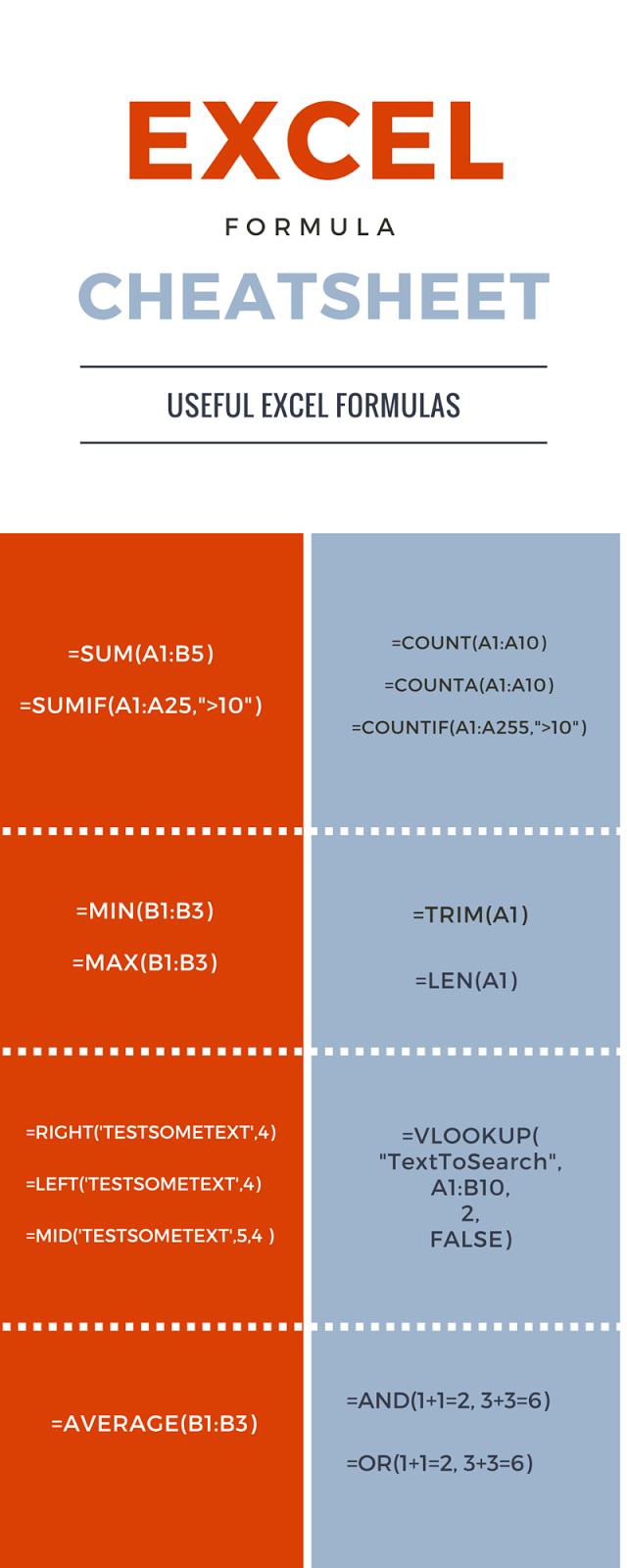
Excel Formula Cheat Sheet Snapshot
Click the image to view the larger version.
Get the Printable Excel Formula Cheat Sheet
The original printable Excel formula cheat sheet was offered as a PDF download in exchange for a tweet. The download instructions and availability may have changed since publication, so check the page’s current download option.
Quick Tips for Using Excel Formulas
- Use cell references instead of hard-coding values when you want a formula to update with your data.
- Check range boundaries carefully; an extra or missing row can change a total or count.
- Use
FALSEwithVLOOKUPwhen you need an exact match. - Test formulas on a few known examples before applying them across a large worksheet.
- When copying formulas, remember that relative references can shift. Use dollar signs, such as
$A$1, to keep a reference fixed.
Conclusion
These 15 Excel formulas cover common tasks, from adding and counting data to checking conditions, looking up values, and cleaning text. Start with a small, familiar dataset, try the examples, and adjust the cell references to match your worksheet. As the functions become familiar, you’ll spend less time on repetitive calculations and more time understanding what your data shows.
Article Updates
- Refreshed with 15 practical Excel formula examples and updated explanations.