
Build File Uploads and Delivery with the Filestack API
Adding file uploads to an app can mean handling storage, file validation, transformations, delivery, and security yourself. Filestack offers APIs and interface components that bring many of those tasks together. This refreshed guide covers how the Filestack API fits into an application, how to get started with an API key, and what to consider when protecting uploads and stored files.
What Is Filestack?
Filestack is a file-management platform for uploading, transforming, storing, and delivering files. Developers can use its JavaScript and mobile SDKs, Upload API, Processing API, and prebuilt File Picker to add file workflows without building every component from scratch.
The platform can be useful for profile pictures, document submissions, media libraries, and other user-generated content. The File Picker offers a ready-made interface, while direct API and SDK integrations give developers more control over the upload experience. If you are new to the underlying concept, start with What is API?
Filestack’s main capabilities include:
- Upload: Accept files from a user’s device, a URL, or supported cloud sources.
- Transform: Apply supported operations such as image resizing, cropping, or format conversion.
- Deliver: Serve files and processed versions through Filestack’s delivery infrastructure.
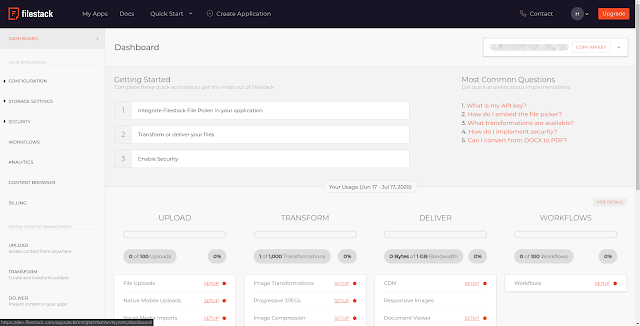
- Manage: Use the developer dashboard and APIs to configure applications and review assets.
How the Filestack API Works
A typical integration starts with an application created in the Filestack dashboard. The app’s API key identifies the Filestack application used for a request. A client-side SDK or File Picker can then upload a file and return a handle. That handle can be used to refer to the uploaded asset in supported delivery and processing workflows.
Filestack can store files in its managed storage or, depending on your plan and configuration, connect to supported external storage. Cloud-source integrations may require the user to authorize access through the relevant provider. Check the current Filestack documentation and your account settings for available integrations and configuration options, as features can vary.
After upload, the application can request supported transformations or deliver the file using Filestack URLs. Processing and delivery behavior depends on the operation, security settings, storage configuration, and plan. Avoid assuming that a particular cache duration or infrastructure location applies universally; verify the current service documentation for your account.
Choosing an Integration Pattern
- Use the File Picker when you want a prebuilt interface and supported source options.
- Use an SDK when you need to tailor the upload experience within a web or mobile application.
- Use server-side requests for trusted operations that should not expose credentials or privileged logic to a browser.
File handling also has practical maintenance implications. A clear upload workflow can reduce the need for ad hoc fixes and unnecessary stored files; for broader device maintenance advice, see A Developer’s Guide to Cleaning Your Computer.
Getting an API Key and Authenticating Requests
Create or sign in to your Filestack account, then create an application in the developer dashboard. The application settings provide an API key. Use the key required by the specific SDK or endpoint you are calling, and follow Filestack’s current documentation for request signing and security options.
An API key identifies an app; it should not be treated as a password or as a substitute for authorization. Some client-side workflows use a public key, while operations that require a secret or signed policy must be generated and protected on a trusted server. Never embed a secret key in browser code, a mobile app, a public repository, or a client-downloadable configuration file.
Example: Initialize the JavaScript SDK
Install the current Filestack JavaScript package using the package manager and version specified in Filestack’s documentation. A basic client-side setup follows this pattern:
import * as filestack from 'filestack-js';

const client = filestack.init('YOUR_PUBLIC_API_KEY');

// Use the client or File Picker according to the SDK documentation.
Replace the placeholder with the API key for your application. Add the upload or picker flow using the current SDK API rather than copying an old snippet blindly; package methods and options may change between versions.
Protecting Uploads
For applications that need restricted access, configure security settings in the dashboard and use the policy and signature approach documented for your Filestack product. Generate signatures on your server, set appropriate expiry times, and limit permissions to the operations the user needs. Also consider:
- Allowing only the file types and size ranges your application requires.
- Validating uploaded content on the server; a filename or browser-supplied MIME type is not sufficient validation.
- Restricting permitted origins or domains where supported, while recognizing that domain controls do not replace authorization.
- Keeping credentials out of logs and rotating exposed keys or secrets promptly.
- Applying retention and deletion policies that match your privacy and compliance obligations.
Testing and Operating Your Integration
Start with a development application and test the whole lifecycle: upload, access control, transformation, delivery, error handling, and deletion. Confirm that a user cannot access another user’s files simply by changing a handle or URL. Monitor failures and usage in the dashboard where available, and check current product documentation for the metrics and controls enabled on your account.
Keep the integration maintainable by pinning SDK versions, reviewing release notes, and handling network errors and retries thoughtfully. For a similar step-by-step approach to adding a third-party service, see How to Integrate a Gift Card API into Your Application: A Developer’s Guide.
Conclusion
The Filestack API can simplify file uploads, transformations, and delivery by providing a managed set of tools and integration options. A successful implementation still depends on sound application design: choose the right SDK or API pattern, protect secrets on the server, validate files, and configure access according to your use case. Begin with a small end-to-end test, confirm details against the current Filestack documentation, and expand the workflow only after its security and failure cases are clear.